
Your perfect power-on. Configured once, kept on the board.
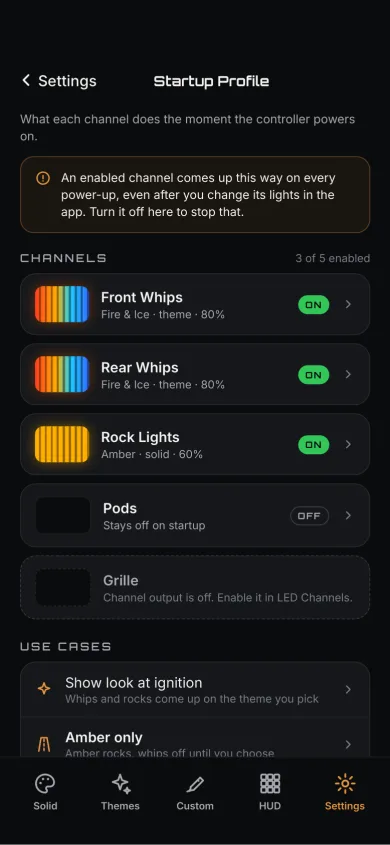
A Startup Profile is the state you want the vehicle to come up in. Choose the channels, choose the pattern, color, brightness and speed, and every power-on starts there — no phone in your hand, no waiting on a connection, nothing to press.
- Runs at power-on — applied the moment the controller has power
- Channel by channel — set the ones you care about, leave the rest alone
- Stored on RhinoLink — board configuration, not an app preference
Now shipping. First production units are going out to customers.
What the vehicle does when it wakes up
Every controller comes up in some state. A Startup Profile is you deciding which one.
Without a Startup Profile
- 1Power onChannels come up in remembered runtime state — whatever they were doing when the vehicle last lost power.
- 2Sometimes that is rightIf last night is still what you want, nothing needs to happen. That is a coin flip, not a decision.
- 3Otherwise you fix it by handUnlock the phone, open RhinoLED, connect, set the channels back where you want them.
- 4Then do it again next startRemembered state only ever remembers the last thing that happened. It has no opinion about how you like to start.
With a Startup Profile
- 1Power onThe channels you selected start in the pattern, color, brightness and speed you configured. Intentionally, every time.
- 2Unselected channels stay flexibleLeave a channel out of the profile and it still comes up in remembered runtime state — useful for the one channel you change constantly.
- 3Nothing to pressThe controller applies the profile itself. The app does not need to be open or connected for it to happen.
Set it once. The profile changes when you change it, and not before. Ride, park, power down, come back a week later — the next power-on looks like the one you configured.
The profile lives on the controller
You write it from the app. The board keeps it and applies it, with no phone interaction at startup.
Board configuration, not an app setting
Saving a Startup Profile writes it to the RhinoLink controller. Change phones, hand the machine to someone else, ride with your phone in a pocket — the profile is on the vehicle.
Applied automatically at power-on
When the controller gets power it reads the profile and drives the channels. There is no pairing step in front of it, nothing to approve, and no app screen to visit first.
Independent across 5 channels
Each RGB channel can start in its own pattern, color, brightness and speed — or sit out of the profile entirely. You name each channel in the app after what is on it.
- Left Whip
- Right Whip
- Rock Lights
- Pod Rings
- Halos
What the app is for. RhinoLED is where you build the profile: set the lighting the way you want the vehicle to come up, then store that state on the board. After that, the app is for changing things — not for starting them.
Startup Profile is not trigger restore
Two different features, at two different moments. Neither one is the other’s fallback.
Startup Profile
Controls power-on.
- When
- The moment the controller receives power.
- What it does
- Applies the pattern, color, brightness and speed you configured to the channels you selected.
- Where it lives
- On the RhinoLink board, applied with no phone interaction.
- What it is not
- It is not where a channel goes when a trigger lets go of it.
Trigger restore
Returns a channel to its pre-trigger runtime state.
- When
- The moment a trigger releases a channel it had taken over.
- What it does
- Pattern, colors, brightness and speed return to what that channel was running before the trigger. If another channel is still running the same animated pattern, the returning channel re-joins that live animation phase; with no matching peer an animation may restart from the beginning. Solid states restore directly.
- Where it lives
- Also on the board — but it is a separate behavior with its own moment.
- What it is not
- It does not send the channel to your Startup Profile.
In plain words. The Startup Profile decides how the vehicle comes up. Trigger restore decides where a channel goes when a brake, turn or accessory input releases it. Configuring one does not configure the other, and one never stands in for the other. See the trigger system for how a vehicle input takes over a channel in the first place.
Four profiles people actually set
One feature, four different opinions about what a power-on should look like.
The trail build that starts subdued
Rock Lights and Halos start on a low solid so loading the trailer before sunrise does not light up the whole staging area. The whips stay out of the profile and come up however you left them.
In the profile- Rock Lights — solid, low brightness
- Halos — matched to the rock lights
- Left Whip and Right Whip — left out on purpose
The show vehicle that starts in its signature theme
Every channel starts in the same theme, at the brightness you picked. The vehicle rolls into the lot already looking like itself, before anyone has taken a phone out of a pocket.
In the profile- All 5 channels — the same theme, the same speed
- Brightness set once, so no channel arrives louder than the rest
- Nothing to set up at the venue
The UTV that starts with its preferred accent configuration
Left Whip and Right Whip come up in the colors you run, with Rock Lights matched underneath. Pod Rings sit out of the profile because that is the channel you change most.
In the profile- Left Whip and Right Whip — your colors, your speed
- Rock Lights — matched to the whips
- Pod Rings — left out, so they keep remembered runtime state
The truck with a predictable underbody setup
The underbody RGB strip starts on the same color and brightness every single time. Nothing to guess about what last night left behind, and nothing to correct on the way out of the driveway.
In the profile- RGB strip — one color, one brightness, no animation
- Same result whether the truck sat overnight or for a month
- Change it when you want to, from the app
- 90built-in patterns
- 54Quick Themes
- 5RGB channels, set independently
A Startup Profile stores a pattern, its colors, its brightness and its speed — the same four things you set when you are riding.
Setting one up takes about a minute
Three steps in RhinoLED, then the board handles it.
Get the lighting right
Set the channels the way you want the vehicle to come up — pattern, color, brightness, speed.
Save it as your Startup Profile
Pick the channels the profile should own and store the state on the controller.
Power-cycle to confirm
Shut the vehicle down and start it again. What you saved is what comes up.
Then stop thinking about it. A Startup Profile is a decision you make once. It holds until you change it, and it does not need the app, a connection or a routine to keep working.
Start every ride the way you meant to.
RhinoLink keeps your power-on state, your trigger mappings and your LED configuration on the board.
Now shipping. First production units are going out to customers.
More on RhinoLink: RhinoLink overview · the trigger system · automotive patterns · controller settings
RhinoLink controls auxiliary and accent lighting. It is not a replacement for required factory vehicle lighting. Lighting regulations vary — check local requirements before public-road use.